
Attack of the Crash - Hunting Down a Rogue Drivers
System BSODs, Reboots, and Hairpulling. My journey hunting for the culprit in my system's crashing issues
J.Arbuckle
10/9/20254 min read
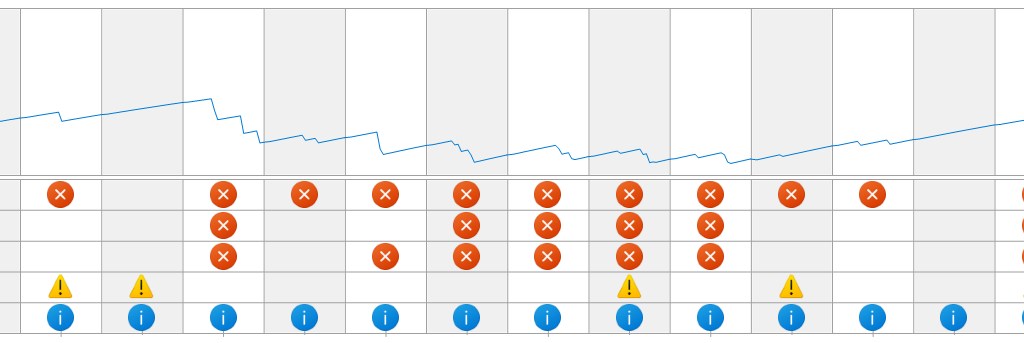
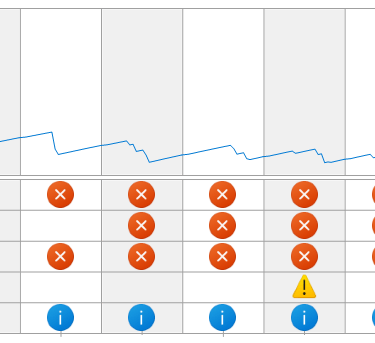
After weeks of random Windows 11 crashes, I finally tracked the cause to a single rogue Elgato Wave Link USB driver. This post walks through the troubleshooting steps, tools, and lessons learned using only built-in Windows utilities.
Tags: #Windows11 #Troubleshooting #DriverVerifier #PnPUtil #BlueScreen #Elgato #SystemStability
Introduction
There’s nothing quite like a mysterious blue screen to ruin a productive day, especially when it happens at random.
Over the past few weeks, my Windows 11 system began crashing out of nowhere. No pattern. No temperature spikes. Just sudden, silent restarts.
At first, it looked like a hardware issue or corrupted update. But after some deep digging, the real culprit turned out to be something far more specific:
A rogue Elgato Wave Link USB audio driver quietly causing system instability.
This post is my troubleshooting log, how I tracked it down, the tools I used, and what I learned in the process.
Step 1: Identifying the Symptoms
The first step was simple observation. Crashes seemed to occur randomly, even when idle.
To verify the issue wasn’t user error or an external power problem, I checked Windows Reliability Monitor using:
perfmon /rel
This tool gives you a clear, timeline-based view of system reliability and crash patterns, perfect for spotting recurring faults. This tool became my base of operations each crash, providing me detailed information about what programs had been recently affected and where to locate dump logs that harbored key information about just happend.
At the same time, I noticed Windows Update was stuck with error 0x800703f1 (corrupted file system error), hinting that something deeper might be wrong, and who doesn't love to see their system cannot update and that the file system itself seem to be corrupt :/
Step 2: Repairing Corrupted System Files
Corrupted system files can create all kinds of instability. I ran a full SFC and DISM repair sequence:
***note: What SFC stands for and does
***note: What DISM stands for and does
sfc /scannow DISM /Online /Cleanup-Image /RestoreHealth sfc /scannow
No issues were found — confirming the base system was healthy. The problem was likely driver-related.
Step 3: Resetting Windows Update Components
To clear any leftover corruption or update hang-ups, I manually reset the Windows Update components.
net stop wuauserv net stop cryptSvc net stop bits net stop msiserver ren C:\Windows\SoftwareDistribution SoftwareDistribution.old ren C:\Windows\System32\catroot2 Catroot2.old net start wuauserv net start cryptSvc net start bits net start msiserver
After restarting, Windows Update worked again — but the random restarts continued.
Step 4: Turning Attention to Drivers
At this point, I began to suspect a third-party driver.
I use a mix of peripherals — Logitech webcam, Razer mouse, and an Elgato Wave 3 mic — all of which install background drivers.
To start investigating, I listed all installed drivers using PnPUtil in PowerShell:
pnputil /enum-drivers | Select-String -Pattern "Published Name|Original Name|Provider Name" -Context 0,2
This command outputs the .inf names and providers for all drivers — perfect for spotting vendor traces.
I then began methodically removing Logitech and Razer drivers:
pnputil /delete-driver oemXX.inf /uninstall
After each removal, I verified with:
pnputil /enum-drivers | findstr "logi"
Despite all that, the crashes persisted. It was time to force the issue.
Step 5: Using Driver Verifier to Expose the Culprit
Driver Verifier is a built-in Windows utility that stress-tests drivers and triggers BSODs when they misbehave.
I ran it via command prompt:
verifier
Then selected all non-Microsoft drivers and enabled these checks:
Special Pool
Force IRQL Checking
Pool Tracking
Deadlock Detection
Security Checks
Miscellaneous Checks
After a few hours of normal use, Windows crashed again — but this time with a specific offender:
elgatovirtusbaudioemu.inf
That pointed directly to the Elgato Wave Link USB Audio Driver.
Step 6: Removing the Elgato Driver for Good
I searched for the exact driver package name with a more detailed PnPUtil command:
pnputil /enum-drivers | Out-String -Width 500 | Select-String -Context 0,6 "elgatovirtusbaudioemu.inf"
This revealed the published name: oem30.inf
I stopped any active Wave Link processes:
Stop-Process -Name WaveLink -ErrorAction SilentlyContinue
Then uninstalled the offending driver completely:
pnputil /delete-driver oem30.inf /uninstall /force
Finally, I verified that it was gone:
pnputil /enum-drivers | findstr /i elgato
Only the harmless elgatollmcomponent.inf remained. Success.
Step 7: Verifying Stability
After removing the Elgato driver, the system ran crash-free for days.
No WHEA errors, no bluescreens, no ghost restarts.
I’m still in observation mode, but every indicator points to the Elgato driver as the cause.
Lessons Learned
Windows’ native tools are powerful.
Driver Verifier, PnPUtil, and perfmon /rel can diagnose 90% of driver issues without extra software.Uninstalls don’t always mean removal.
Vendor apps often leave behind .inf files and services that continue to load in the background.Document everything.
Keeping a running Obsidian log of every command made it easy to retrace steps and build this write-up.Don’t rush to reinstall.
With patience and data, you can isolate most issues surgically instead of starting from scratch.
Tools Used
ToolPurposeperfmon /relCheck crash history & system reliabilityEvent ViewerReview critical system errorsSFC / DISMRepair system integrityPnPUtilEnumerate and uninstall driversDriver VerifierStress-test drivers for faultsBalena Etcher / fdiskUsed for USB drive testing during troubleshooting
Conclusion
Troubleshooting isn’t just about fixing your system — it’s about understanding it.
Each layer of Windows revealed a new clue: from update corruption to rogue drivers and hidden .inf files.
The biggest takeaway? Be patient and systematic.
The fix is usually in the logs — you just need to know where to look.
Featured Image Suggestion
(for Hostinger’s thumbnail upload)
Screenshot of a Windows BSOD with overlay text: “Hunting Down a Rogue Driver — A Windows 11 Case Study”